Kidmedic – Become a beta tester

Here you can learn how to test Kidmedic on your iPhone or iPad via TestFlight.

For the Kidmedic beta test we use TestFlight, Apple's official service for testing pre-release versions. After your invitation you can install Kidmedic like a regular app, provide feedback and receive new builds automatically.

The following information is a summary of Apple's official page TestFlight – Apple.

Requirements for the beta test

  • Device: iPhone or iPad
  • Operating system: iOS or iPadOS 16 or newer (per Apple requirements for TestFlight)
  • Apple ID: personal or work Apple account
  • TestFlight app: free to install from the App Store
  • Invitation: by email or public link from the Kidmedic team

Depending on beta test configuration, certain device models or iOS versions may be required. In that case TestFlight will inform you when accepting the invitation.

How to become a beta tester (iPhone / iPad)

1. Install TestFlight

Download the TestFlight app from the App Store onto the device on which you want to test Kidmedic.

2. Accept the invitation

You will receive from the Kidmedic team either:

  • an email invitation with the "View in TestFlight" button, or
  • a public link to the beta test.

Open the invitation on your iPhone or iPad, tap "View in TestFlight" or follow the link, then select "Accept" to add Kidmedic to your TestFlight account.

3. Install Kidmedic

Once a compatible build is available, TestFlight shows an "Install" button for Kidmedic. Tap "Install" to install the current beta on your device.

Each beta version can typically be tested for up to 90 days from upload of the build. In TestFlight you can see how many days remain for each build.

4. Automatic updates (optional)

In the TestFlight app you can enable automatic updates for Kidmedic or for all beta apps. New builds are then installed in the background and you receive a brief notification.
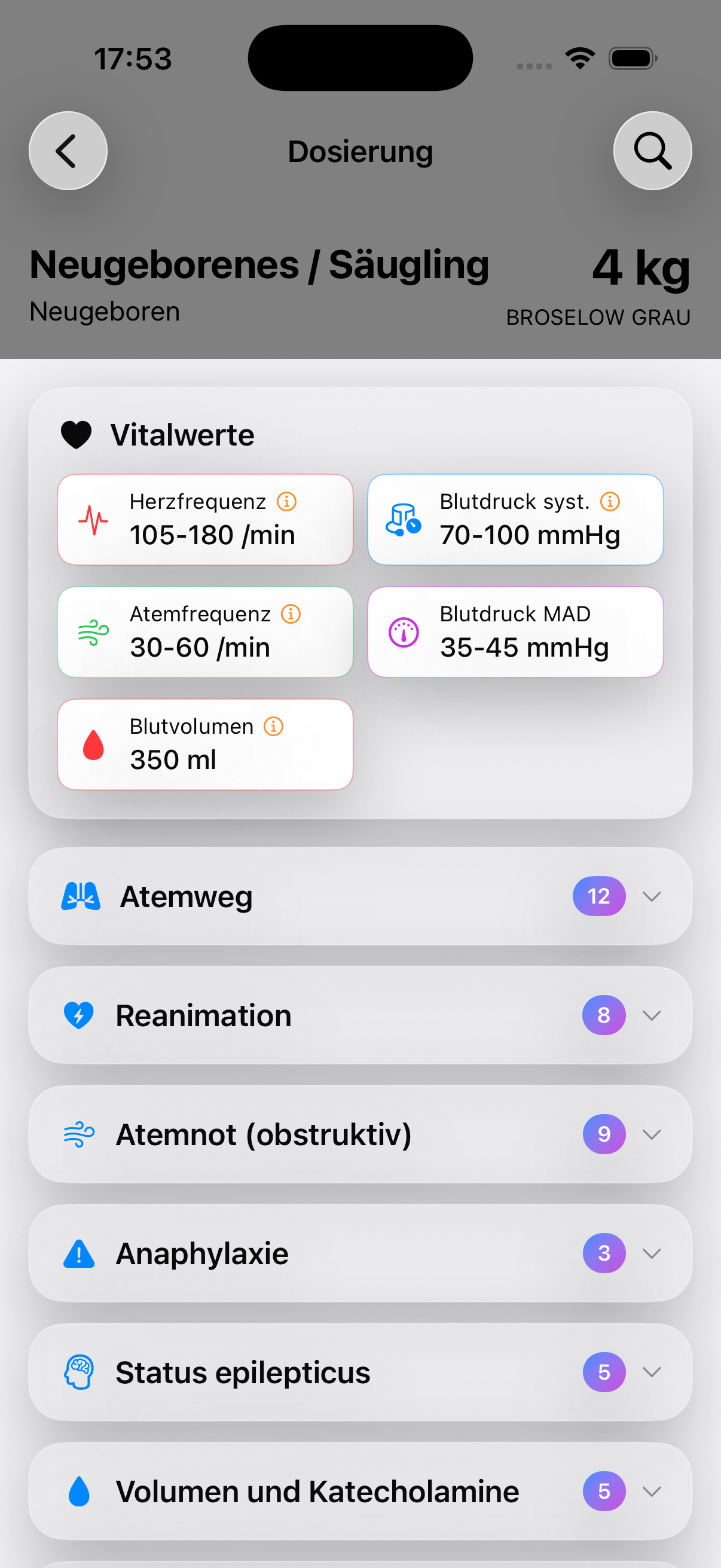
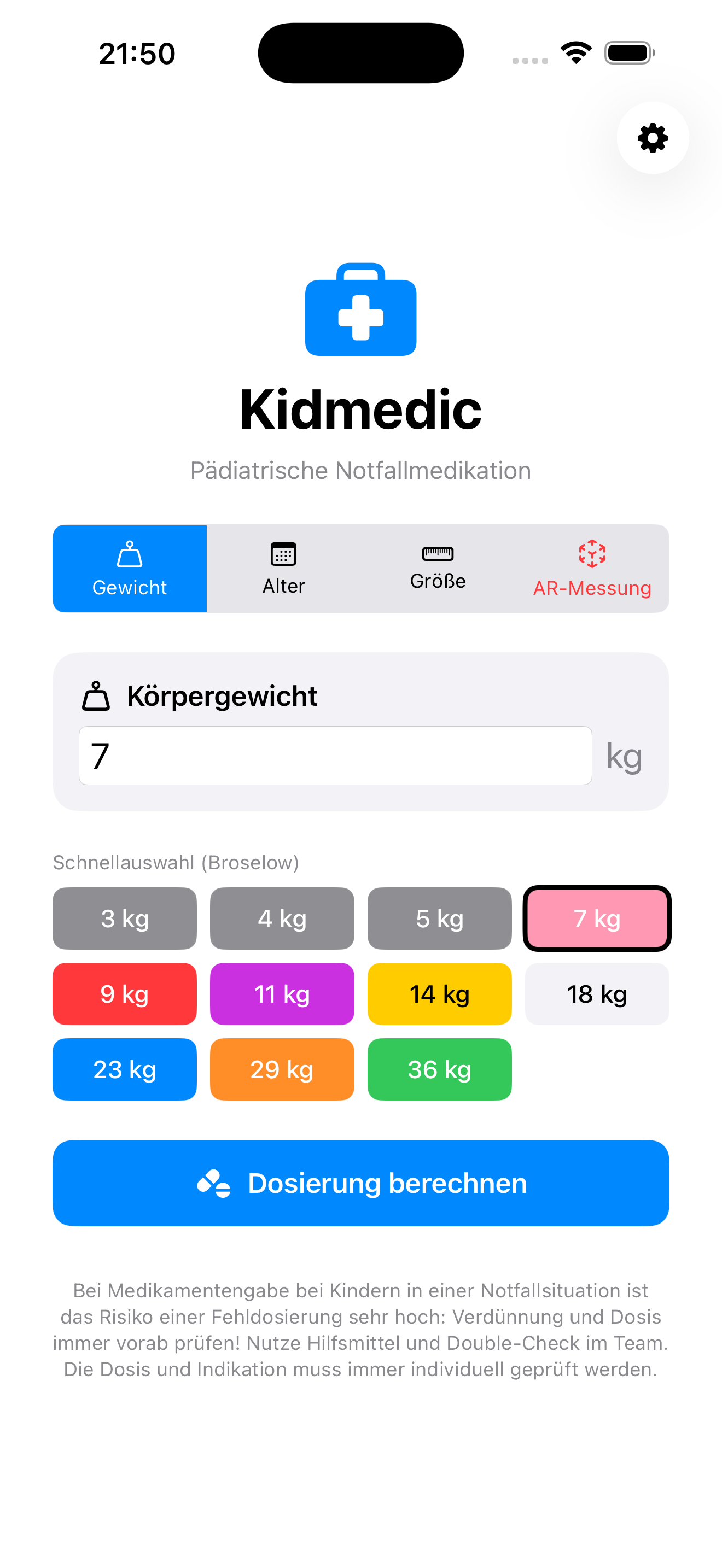
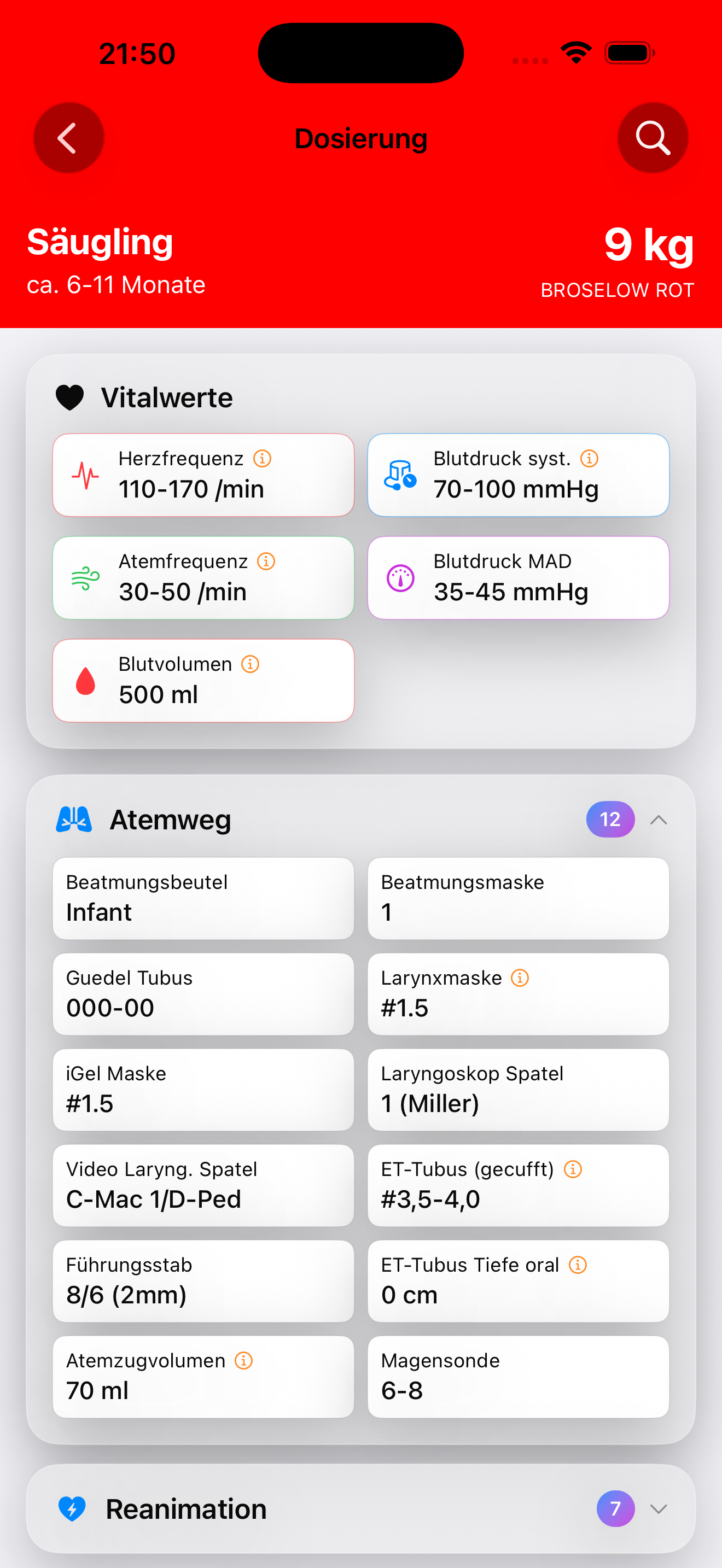
Illustration of app development and beta testing

Feedback and bug reports

During the Kidmedic beta test you can send feedback directly from TestFlight or from within the app. This feature is provided by Apple and forwards your feedback to the developers.

Send feedback from TestFlight

  • Open TestFlight and select Kidmedic from your app list.
  • Tap "Send Beta Feedback".
  • Optionally add a screenshot and describe your observations (bug description, suggestions, etc.) in text.

Feedback via screenshots

  • Take a screenshot in Kidmedic.
  • In the screenshot preview, the "Share Beta Feedback" option appears.
  • If needed, add a brief description and submit the report.

Crashes

If Kidmedic crashes during testing, you can usually send a crash report to the developers immediately after the crash. It contains technical information that helps find and fix the issue.

Privacy and ending the beta test

When testing with TestFlight, Apple collects certain data according to their documentation, e.g. usage information, crash logs and feedback you submit. This information is used to improve the app and identify problems.

  • Your feedback is sent to both Apple and the developers.
  • If you participate via a public link, you can choose whether your email address is shared.
  • You can end the test at any time by deleting Kidmedic in TestFlight or selecting "Stop Testing" in the app details.

Detailed information about TestFlight is available directly from Apple at TestFlight – Apple.

Interested in the Kidmedic beta test?

If you would like to test Kidmedic as part of the beta programme, please contact us with details of your area of work (e.g. EMS, paediatric emergency department, intensive care). We will get back to you with further information and – if places are available – a TestFlight invitation.

Beta test registration Back to Kidmedic